版權聲明

所有的部落格文章都可以在右邊[blog文章原始檔案]下載最原始的文字檔案,並依你高興使用 docutil 工具轉換成任何對應的格式方便離線閱覽,除了集結成書販賣歡迎任意取用,引用
顯示具有 osx 標籤的文章。 顯示所有文章

Multiple version python in OSX

Multiple version python in OSX

如果您使用的是 Mac OSX 10.6 你又下載了新的 python 2.6.4 可能會有一個問題, 有些 model 變得找不到了..

這是因為如果shell環境沒有特別設定直接下載安裝 python 2.6.4 會裝在

/Library/Frameworks/Python.framework/Versions/2.6

原本 Snow Leopard 附帶的 2.6.1 在

/System/Library/Frameworks/Python.framework/Versions/2.6

如果沒有特別設定或是從新安裝 setuptools 透過 easy_install 安裝的 modle 會裝到

/Library/Python/2.6/site-packages

OSX Multi-Clipboard

OSX Multi-Clipboard

http://www.quicksnapper.com/files/5896/10509963434A36028185DB0_m.png

jumpcut 是 osx 上面免費又開源的多重剪貼簿軟體,用法很簡單可以直接點 menu bar 上面的 icon 在點選列出的項目貼上,也可以使用熱鍵叫出剪貼簿的內容,並使用↑(up) 或↓(down) 切換十分方便。

熱鍵可以在 jumpcut 的 preference 裡面設定。

http://www.quicksnapper.com/files/5896/18400902594A360284CE09E_m.png

如想開機直接執行可以在 [系統偏好設定]->[帳號] 裡面設定

http://www.quicksnapper.com/files/5896/716860574A36027F18C3D_m.png

What is Bundle??

What is Bundle??

寫過真正的程式的人都知道,寫程式不難,寫完以後才是困難的開始,有時候光 Bug 回報就 壓垮一個自信滿滿工程師的信心,就算中樂透沒重大 bug ,事後的版本維護,功能增減也是 大問題,我覺得程式本身都沒什麼難的,應該說都是有答案的,演算法不好用暴力解法也是 解的出來,不會最佳化時間複雜度(Big-O)就用更快的cpu,軟體開發真正難的我覺得是人 的問題,每個人都有自己的意見,工程師和業務觀點又不同,這些才是困難的,說實話電腦 比人好搞多了.....

上面引言和今天筆記的主題完全沒關係,今天要說得是 OSX 上面對於程式管理的一個東西 [1] Bundle ! Bundle 說穿了就是把一個程式所需要所有的相關資源都到一起統一管理的一 個技術,程式需要的資源,函式庫,string table等等都放到一個目錄下面,然後 Finder 會將這個目錄封裝起來,並呈現為單一程式的樣子,讓使用者可以完全受騙,感覺程式只有 單一執行檔這樣...

比如 FireFox 在 Windows XP 檔案總管下看起來是這樣:

https://blogger.googleusercontent.com/img/b/R29vZ2xl/AVvXsEhWqJWNjtAtUtuIqpngnMg9wSXo7MWdVpx7VeyMp9qtGxRuk_-1DBA_bAPr0_y-jB-3FgY1qOSHlyOJ0qDZlVvQ-GDMnMMk6kh6VHqgQLy33IIXjd8J8QDWr2TNIh2jSzOuK6OTL_yEnDaY/s800/firefox.jpg

在 mac 上面卻很漂亮....

https://blogger.googleusercontent.com/img/b/R29vZ2xl/AVvXsEiQgJFlee-qYkmlvZ9GmM3wzBMfRf0DSlmxpNXkDDwQCBWoUNSbkpI3ielC5hFRyvRo9hP2DlBj7w1Ebokq83IF6ro0fnnrB2J1MyvAvozK51jxPNk5n0QADyvnIAiz9wWVAXy59psW7wuP/s720/firefox_mac.png

好啦,平心而論這是一種抹黑 Windows 的手法,因為一般使用者根本只會看到[開始]功能表 裡面的捷徑,不然就是桌面上的捷徑,這樣其實和mac差不多,都是看到單一進入點的執行檔 ,相對來說 mac 對於沒那麼基本的使用者來說相對麻煩,因為要打開超好用的終端機才能順利 進去看bundle 真正的內容,windows 只要知道安裝在哪就可以用超難用的檔案總管去看了。

對於 Bundle Apple在網頁上面有列出一堆他的優點:

  • Bundles are directory hierarchies in the file system. A bundle contains real files that can be manipulated by all file-based services and API.
  • The bundle directory structure makes it easy to support multiple localizations. You can easily add new localized resources or remove unwanted ones.
  • Bundles can reside on volumes of many different formats, including multiple fork formats like HFS, HFS+, and AFP, and single-fork formats like UFS, SMB, and NFS.
  • Users can install, relocate, and remove bundles simply by dragging them around in the Finder.
  • Bundles that are also packages, and are therefore treated as opaque files, are less susceptible to accidental user modifications, such as removal, modification, or renaming of critical resources.
  • A bundle can include separate executables for different target platforms. For example, a bundled application could include separate executables for Mac OS 9 and Mac OS X.
  • A bundle can support multiple chip architectures (PowerPC, Intel), library architectures (CFM/MachO), and other special executables (for example, optimized libraries for AltiVec).
  • Most executable code can be bundled. Applications, frameworks (shared libraries), and plug-ins all support the bundle model.
  • An application can run directly from a server. No special shared libraries, extensions, and resources need to be installed on the local system.

簡單來說 bundle 就是一種聰明的目錄,可以把軟體相關的資源檔案全部包在一起。。。

Bundle types

OSX 有兩種基本的 Bundle 型態:

  1. modern bundle
  2. versioned bundle

modern bundle 通常用於一般可執行軟體或 plug-in, versioned bundle 通常用在 Framework [2] ,不同的 bundle 型態其目錄內部構造也會不同。

[1]: 其實我也不知道這是哪個版本才有的東西,畢竟對MAC的歷史不熟。
[2]: Apple 發明類似 DLL/ static library 的東西..

Modern Bundle

Modern Bundle 架構很簡單,只有一個子目錄 Contents/ 其他雜七雜八的東西都在這個 Contents/ 下面, 有興趣的話可以隨便找一個來觀察,目錄 /Application 下面應該就充滿 Modern Bundle,可以隨便選一個 有興趣的進去瞧瞧。

在 Contents/ 下會有一個十分重要的檔案 -> Info.plist , info.plist 是個 XML 格式的設定檔案,內容 包含一些 Bundle 的資訊和設定,比如說 Bundle 名稱,版本,執行檔位置, Serviec 文件格式等等。

假如 Contents/ 下面有一個子目錄是 MacOS/ 裡面擺得就是OSX執行檔和相關檔案,相對的 MacOSClassic/ 就是相容於 OS 9 的執行檔和相關檔案。

Resource/ 目錄下面寫過 Windows 的人應該可猜出是幹麼用的,像 GUI 這種寧可犧牲效率(疑!?)也要 死命討好用戶五官的軟體,都有一籮筐看起來好看的圖形,聽起來炫的音效,或是視窗佈局等等的檔案,用處 很低可是大家都喜歡,我就很稿不懂以前寫過一個 Win32 GUI 的軟體,老闆不知道哪跟筋不對,叫工程師一 定要把 menu 加上 icon。。。 離題了,反正這個目錄下面就是擺這些軟體要使用的資源。

除了上介紹的目錄,可能還會有 PlugIn/ Framework/ 等等其他的子目錄,端看軟體的需求。

Versioned Bundle

Versioned Bundle 屬於 Framework 的範圍,這又是另一個好長的故事了,有空再說。。

OSX 的 Open Here

OSX 的 Open Here

對我來說終端機可是比那個什麼 Finder 好用多了,首先 Finder 雖然可以利用熱鍵 Shift+Cmd+G 來打開一個可以輸入目錄名稱的對話盒,那對話盒也有支援 tab 鍵 補完目錄,但是終端機好用的 pushd 和 popd 還是沒有阿,在 OSX 下 Finder 除 了拿來卸載USB裝置外,基本上很少去打開他了...雖然他總是一臉和善...

https://blogger.googleusercontent.com/img/b/R29vZ2xl/AVvXsEhy_jeUV_v24v-Y0YwTwIp0_KPw868TjDsHP6D-YMx_jEDiOuUrdSdcIWl3oz3Q5NUkirITGTKSEEPSWNgoyyoyJ1NMZdVnwafva7Qj2jsTLSdihqjMVM7oVXxFBt6vg1wpbGGHlEfu71-Q/

喔!對了 Finder 好像比較重視 檔案的人權 ......除此之外 Finder 就和檔案總管一樣 根本感覺是多的東西,Finder更慘的是他的os底層是貨真價實的unix系統,強大的文字 console環境,真叫人為 Finder 流下一把同情淚。

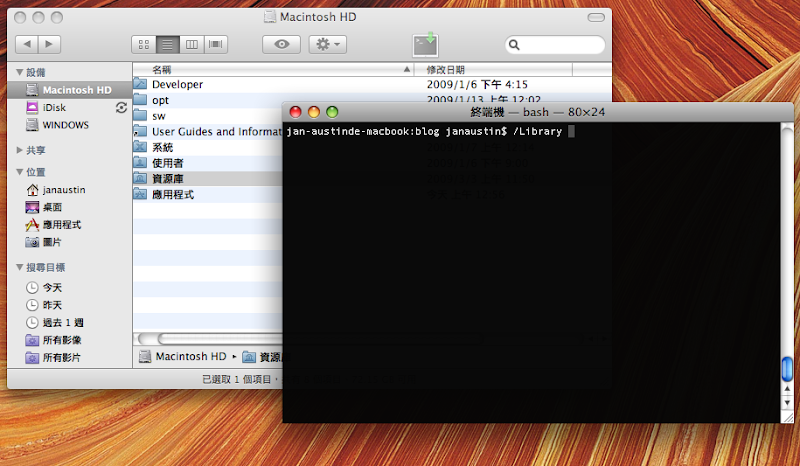
說了那麼多廢話,今天的主題是假如些目錄你在 Finder 上面看得到可是在終端機卻找不到 該怎辦?最簡單的方式就是用拖拉的方式,將目錄拉去終端機,終端機會自動幫你補上正確 的目錄名稱。(下圖是把資源庫拉進終端機的畫面)

https://blogger.googleusercontent.com/img/b/R29vZ2xl/AVvXsEhI2rh3CIFQMPoUeJNzrwVaLPI5-FCaJtuIMuIzI9cEFXiVArN1xP3jRgcQftqG1egVx2RdMTPsUe0sdEe5Z3McIAE1WYDNA9kXjFrgWv6HH5ru25iRlSUcCB9boY7mREnQPyxH1OuPZV4F/s800/%E5%9C%96%E7%89%87%201.png

可是托拉動作又慢又傷手腕,比較起來我情願用滑鼠click,當然假如真的只是要介紹拖拉 就出一篇blog橠不是吃飽太閒,就是上班無聊,一定有東西端出來的。

Open Terminal

OpenTerminal 是和 WinXP 的 Open here 一樣的工具,可以自動開啟終端機並將工作目錄 設定和 Finder 目前目錄相同,下面是下載網址。

http://homepage.mac.com/thomasw/OpenTerminal/

免安裝,下載完畢後直接丟到 Application 裡面再拉到 Finder 的 Toolbar 即可 (Finder -> 顯示方式 -> 自訂工具列...)。

拉完後你的 Finder 應該長得項這樣才對。。

https://blogger.googleusercontent.com/img/b/R29vZ2xl/AVvXsEgRtGm0Ce_CeAAx223x81v7KFPM-NOC-jpJazSv2k9r1btXcw7HBLK-1cUNkFgiGuCQ3hTJ6tAJ0vsoVkwffZ7vSjvHVs97vqaIYxCW0JlsgeCFzcK0pGSlYBkqsqUj8DrYylwn0ku9HSDP/s720/%E5%9C%96%E7%89%87%202.png

上面會多一個有綠色箭頭的終端機圖示。

替換osx的ls

用慣了linux,對於Leopard上面的ls顏色總是覺得不對勁。 這網頁有教學 http://biphenyl.org/blog/2007/11/10/replacing-ls-in-os-x/ 簡單來說
  1. http://ftp.gnu.org/gnu/coreutils/下載最新版本
  2. 解壓縮 tar -xvf coreutils-6.9.tar.gz
  3. ./configure
  4. make 執行下面命令 sudo mv /bin/ls /bin/ls.baksudo cp src/ls /bin/ls sudo cp src/dircolors /bin/dircolors sudo mv /usr/share/man/man1/ls.1 /usr/share/man/man1/ls.1.bak sudo cp man/ls.1 /usr/share/man/man1/ls.1 sudo cp man/dircolors.1 /usr/share/man/man1/dircolors.1

osx bash prompt 設定


Bash Prompt Escape Sequences

     \a     an ASCII bell character (07)
     \d     the  date  in  "Weekday  Month  Date" format
            (e.g., "Tue May 26")
     \e     an ASCII escape character (033)
     \h     the hostname up to the first `.'
     \H     the hostname
     \n     newline
     \r     carriage return
     \s     the name of the shell, the  basename  of  $0
            (the portion following the final slash)
     \t     the current time in 24-hour HH:MM:SS format
     \T     the current time in 12-hour HH:MM:SS format
     \@     the current time in 12-hour am/pm format
     \u     the username of the current user
     \v     the version of bash (e.g., 2.00)
     \V     the  release  of  bash, version + patchlevel
            (e.g., 2.00.0)
     \w     the current working directory
     \W     the basename of the current  working  direc-
            tory
     \!     the history number of this command
     \#     the command number of this command
     \$     if  the effective UID is 0, a #, otherwise a
            $
     \nnn   the character  corresponding  to  the  octal
            number nnn
     \\     a backslash
     \[     begin a sequence of non-printing characters,
            which could be used to embed a terminal con-
            trol sequence into the prompt
     \]     end a sequence of non-printing characters

example:

在 ~/.bash_profile加上 # Prompt STARTCOLOR='\e[0;33m'; ENDCOLOR="\e[0m" export PS1="$STARTCOLOR\u@ \w $ $ENDCOLOR"

Related Posts with Thumbnails